



Keep the icon in the toolbar
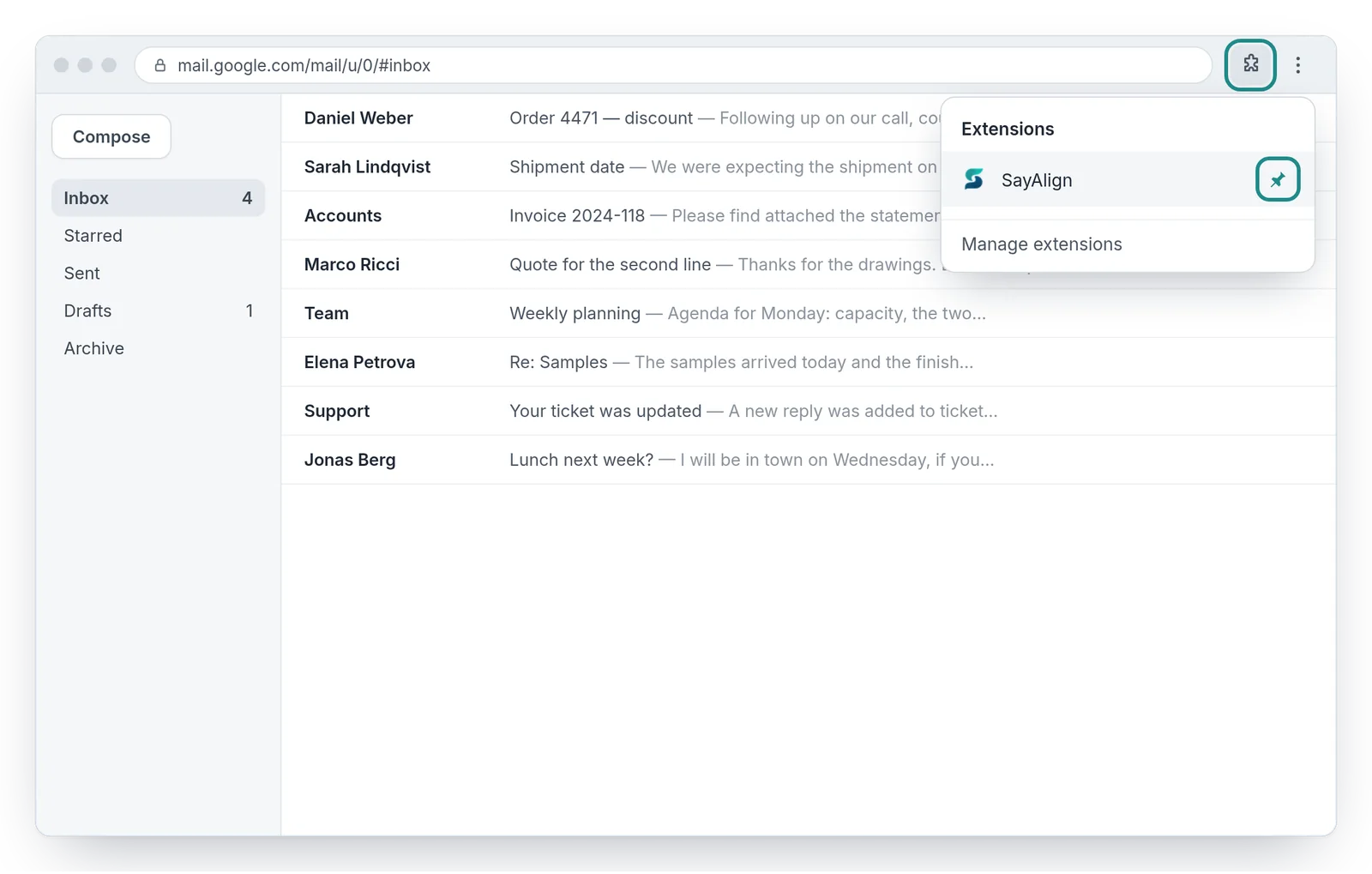
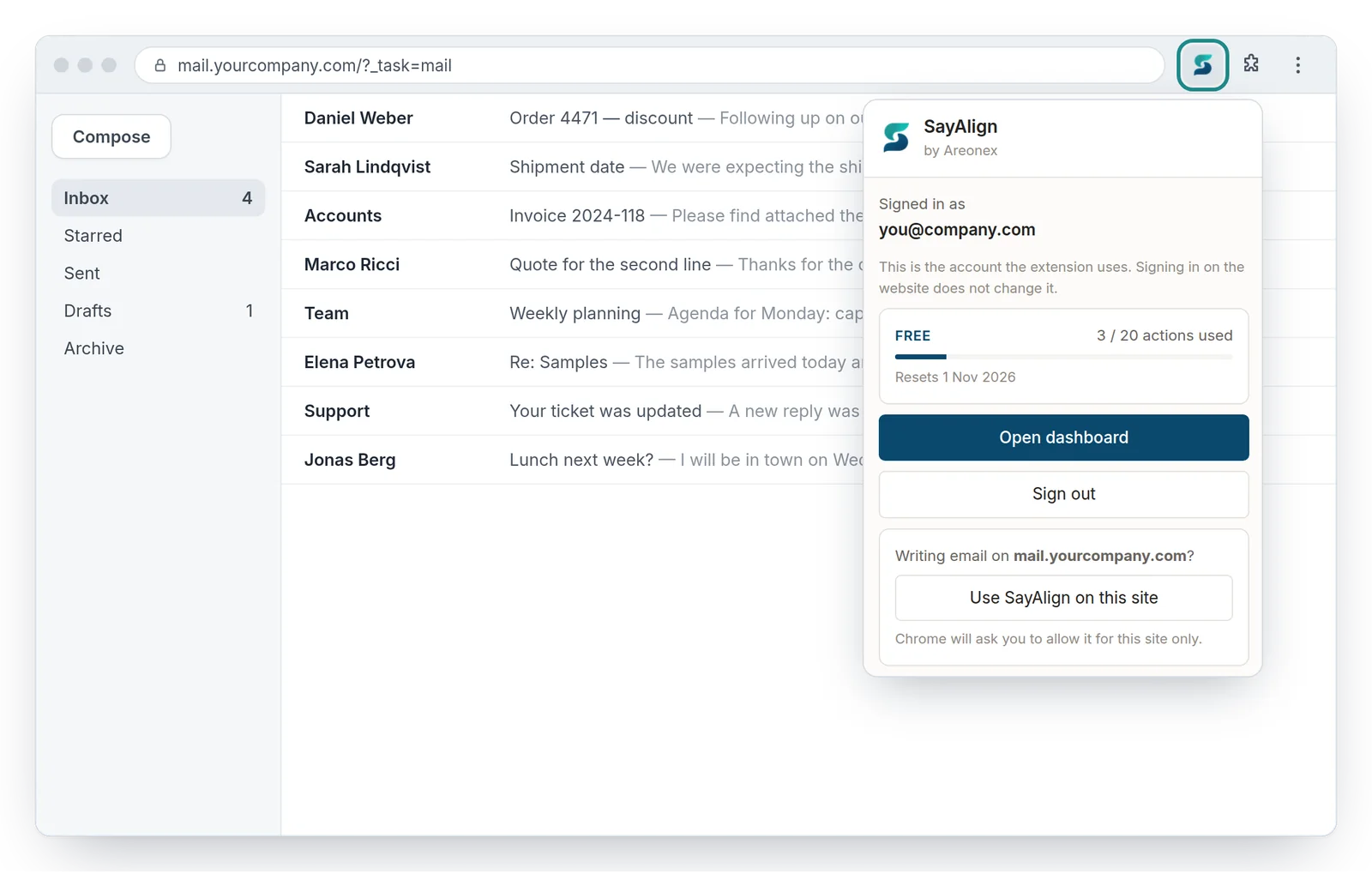
Browsers hide new extensions behind the extensions menu. Pin SayAlign once and its icon stays next to the address bar — that icon is where you sign in and see your plan.

Install it once, sign in once, then select text in a message. This page walks through it in Chrome and Edge, and in Gmail, Outlook on the web, LinkedIn and other webmail.
The SayAlign panel and popup in these pictures are the real ones. The mail screens around them are simplified illustrations — your mail service looks like itself.
The same extension in both browsers. It also works in Brave, Arc, Opera and other Chromium browsers through the Chrome Web Store.
Browsers hide new extensions behind the extensions menu. Pin SayAlign once and its icon stays next to the address bar — that icon is where you sign in and see your plan.
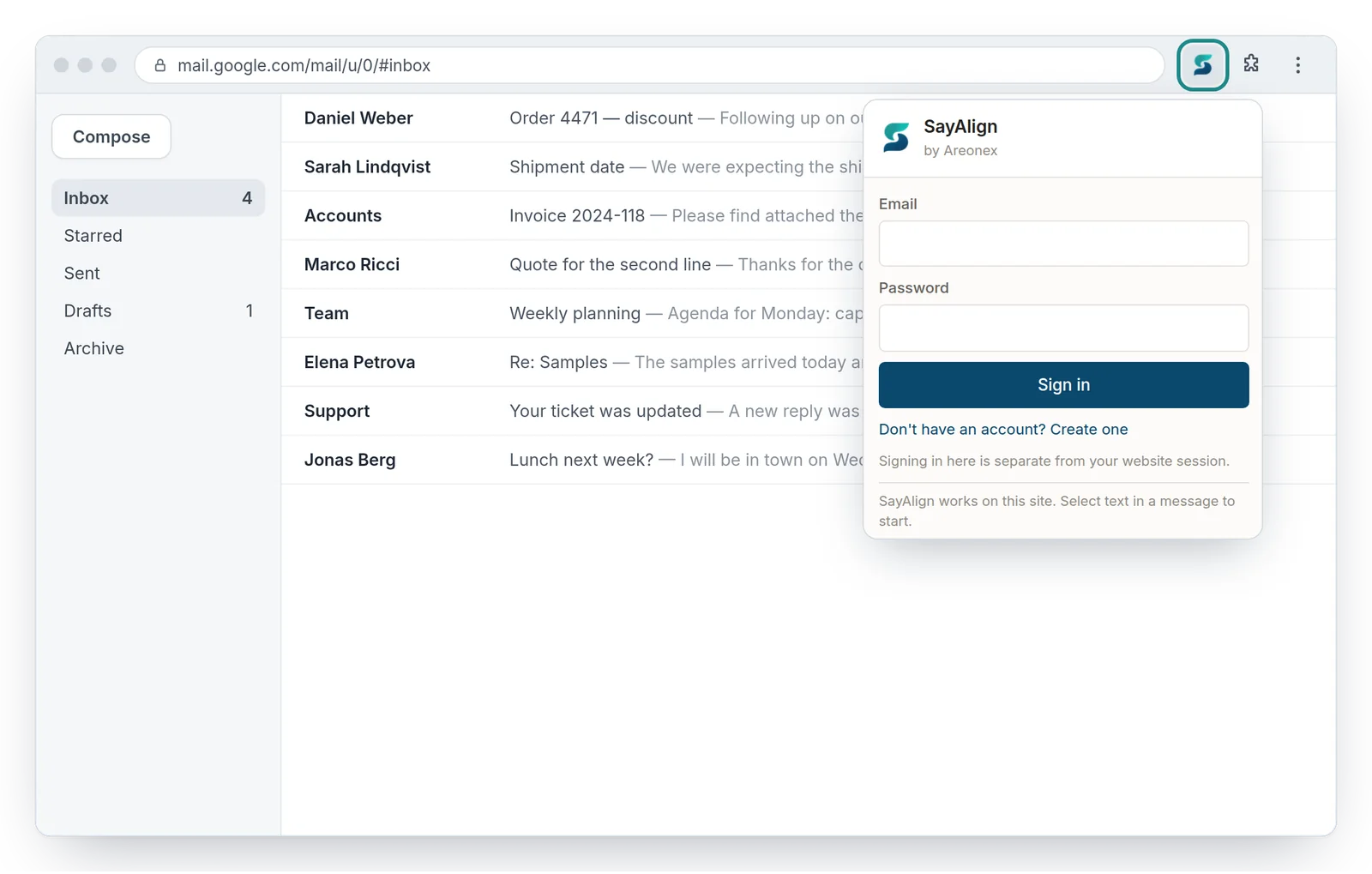
Click the SayAlign icon and sign in with the email you used on sayalign.com. No account yet? Create one free.
The extension keeps its own sign-in, separate from the website — signing in on the site does not sign in the extension.
Mail tabs that were open while you installed still run without SayAlign: close them and open them again.
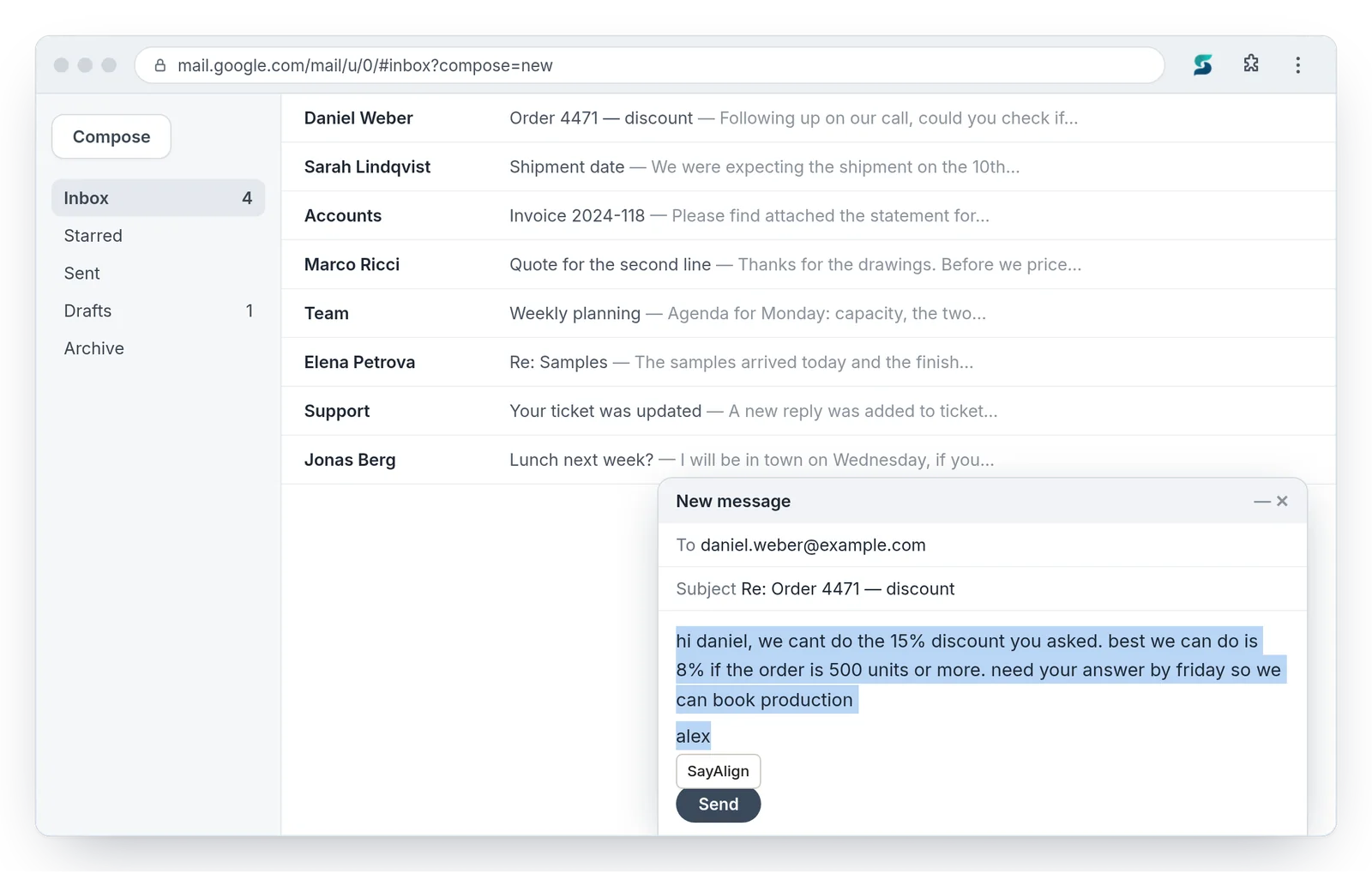
Works the same in every supported mail service: in a new message or a reply.
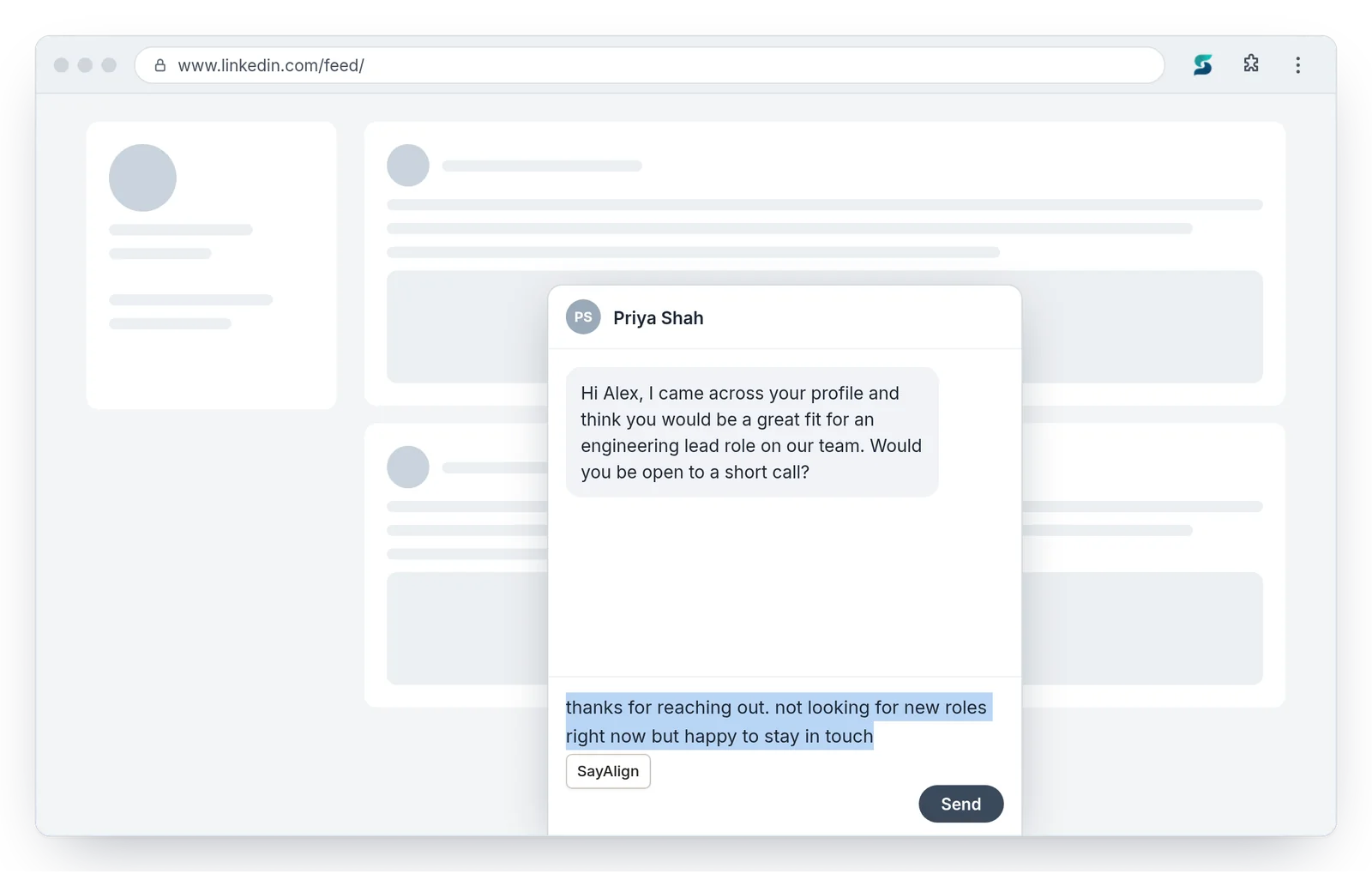
Select a sentence or the whole draft. A small SayAlign button appears under the selection. Click it.
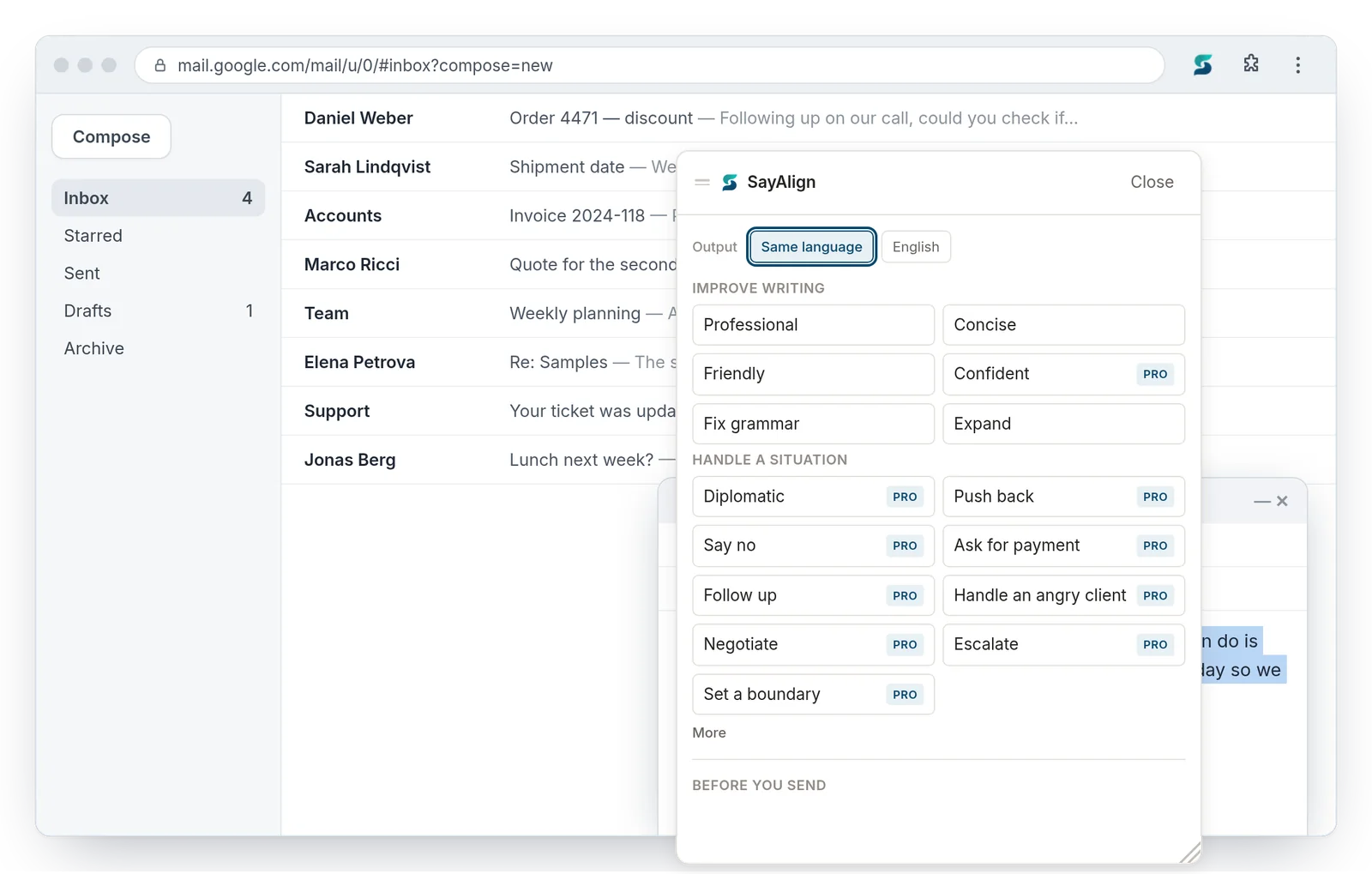
Improve writing changes the delivery: Professional, Concise, Friendly, Fix grammar, Expand.
Handle a situation writes for what the message has to do — push back, say no, ask for payment, negotiate. These are part of Pro.
Output at the top of the panel is set to Same language: the result stays in the language you wrote in, whatever it is. Choose English to get it in English instead.
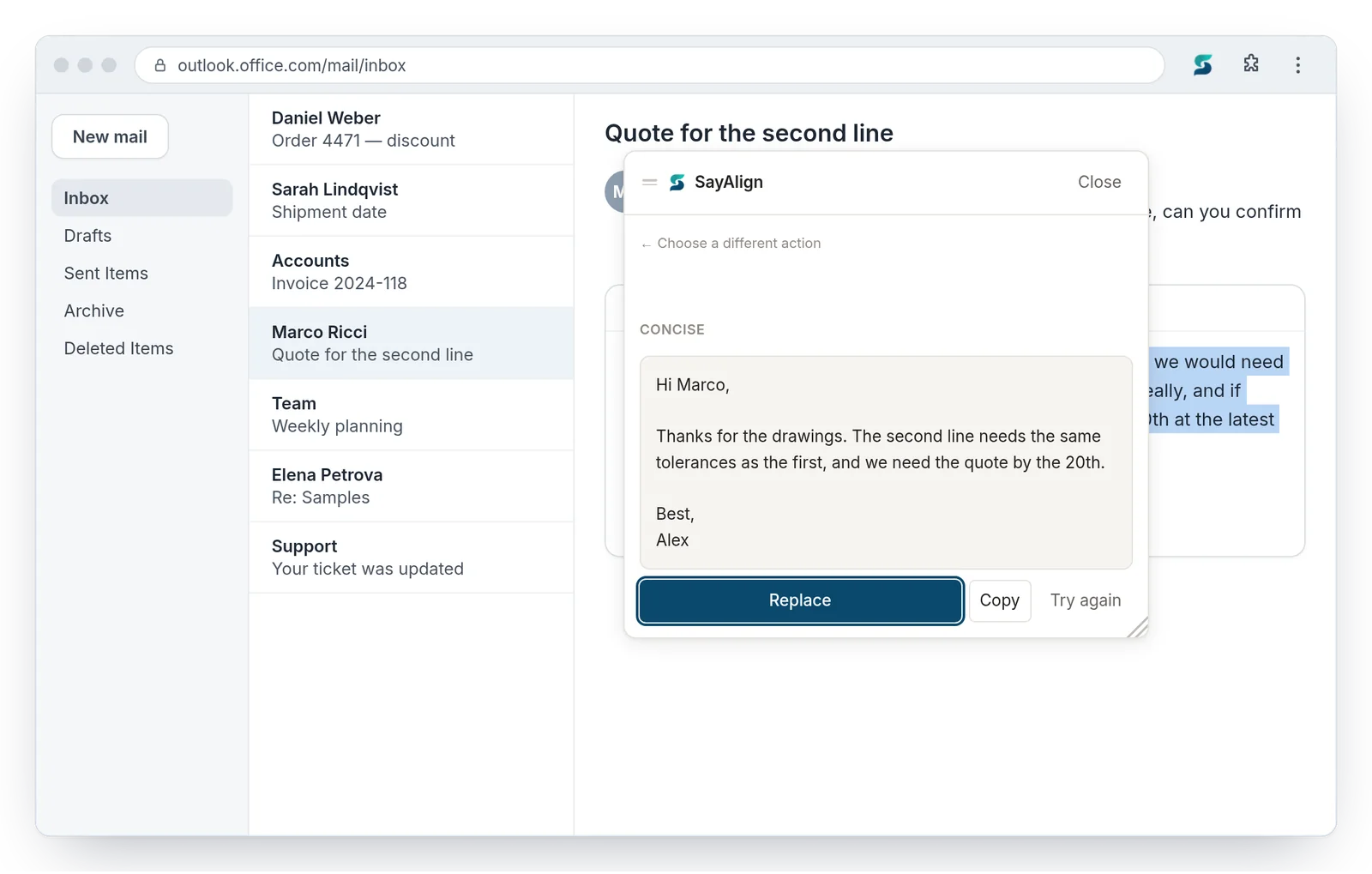
Read the result in the panel. Replace puts it in place of your selection; Copy leaves your draft alone; Try again writes another version.
Changed your mind after replacing? Press Cmd+Z on a Mac or Ctrl+Z on Windows and your original comes back.
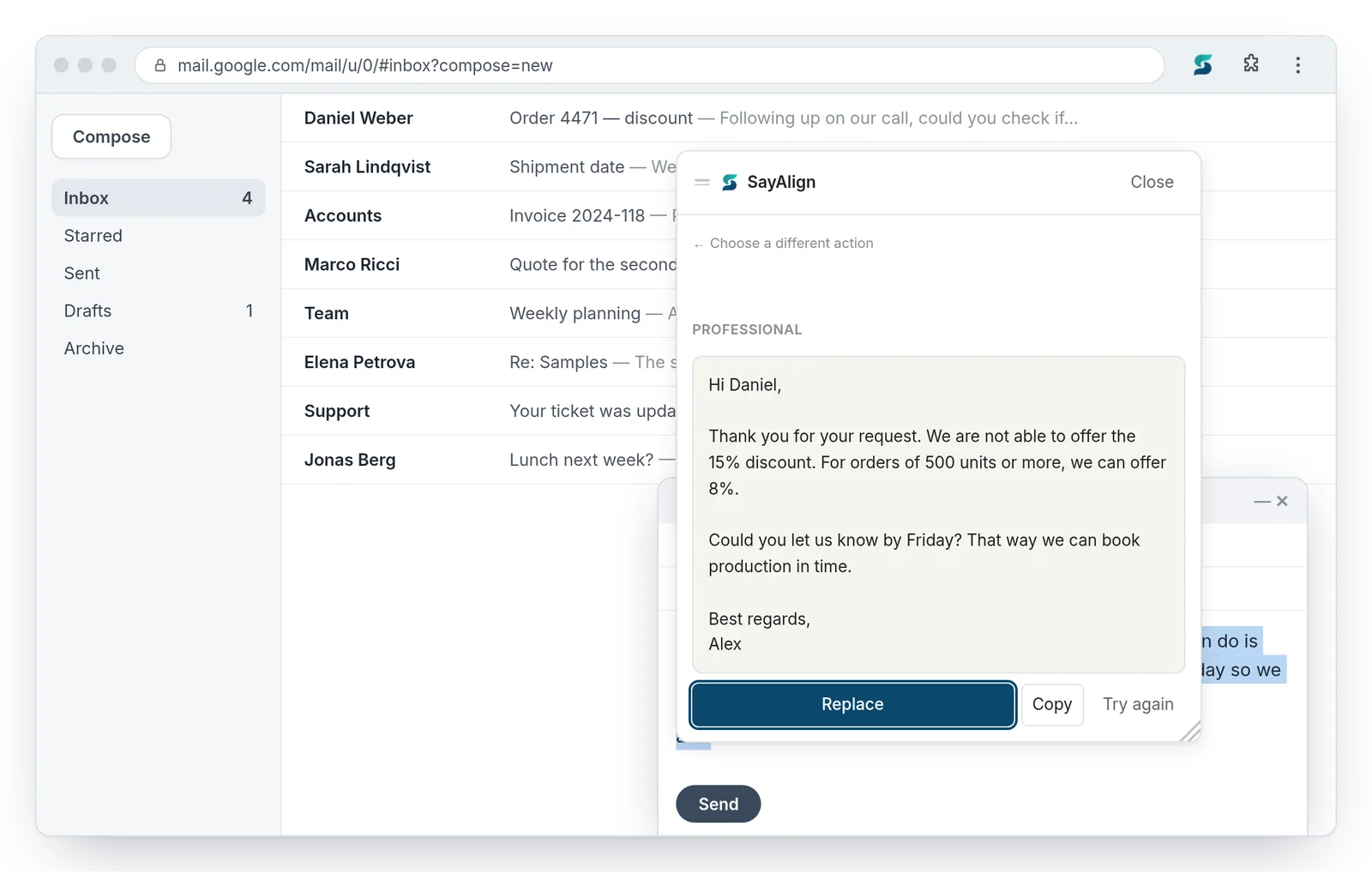
Start from their message rather than your draft. SayAlign drafts the reply; you decide whether to use it.
Select the message you are answering. A Reply with SayAlign button appears. Click it.
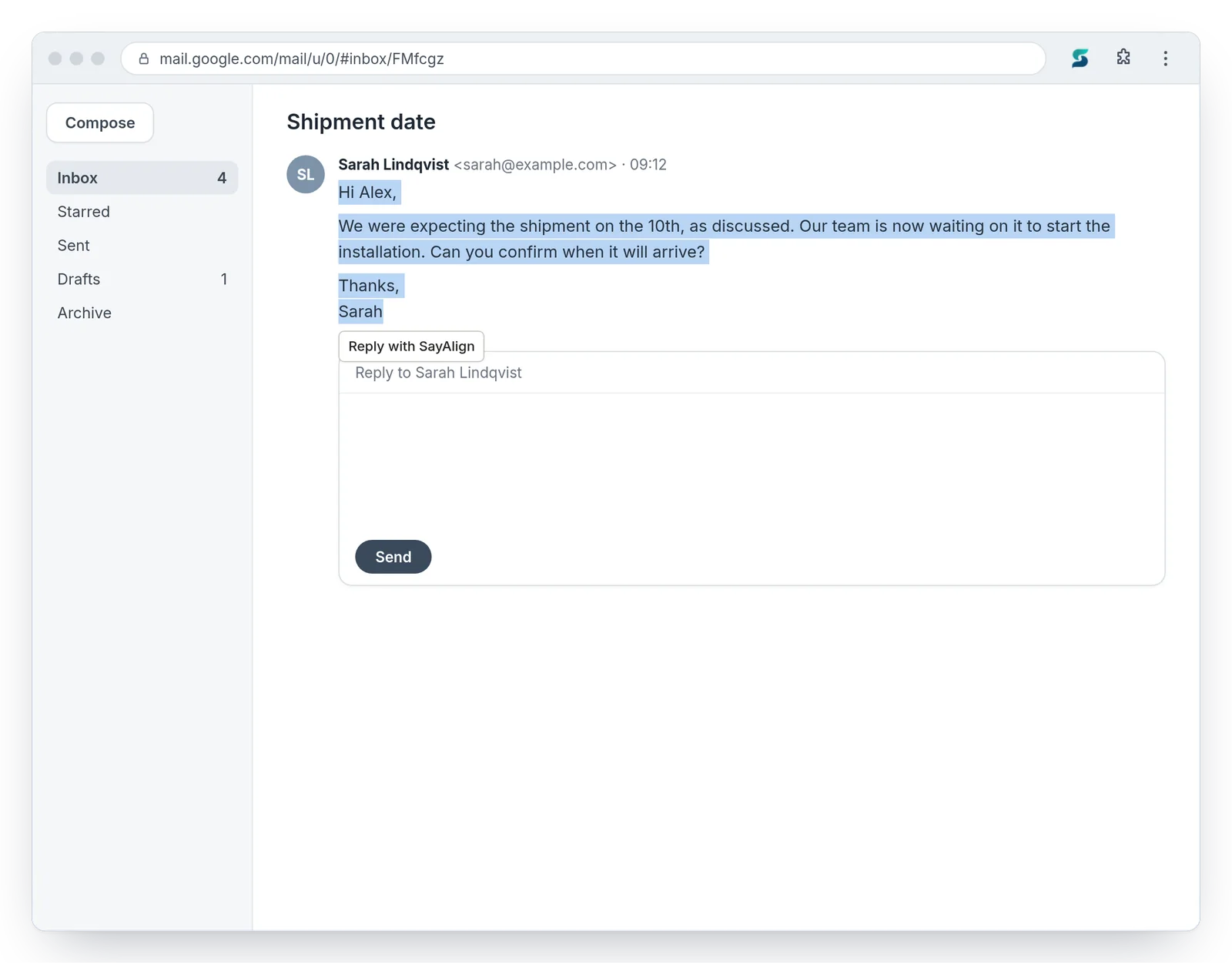
Pick what the reply is doing and a tone. In the box, add what you want to say in a few words — or leave it empty for a reply that acknowledges the message without committing you to anything.
Then click Generate reply.
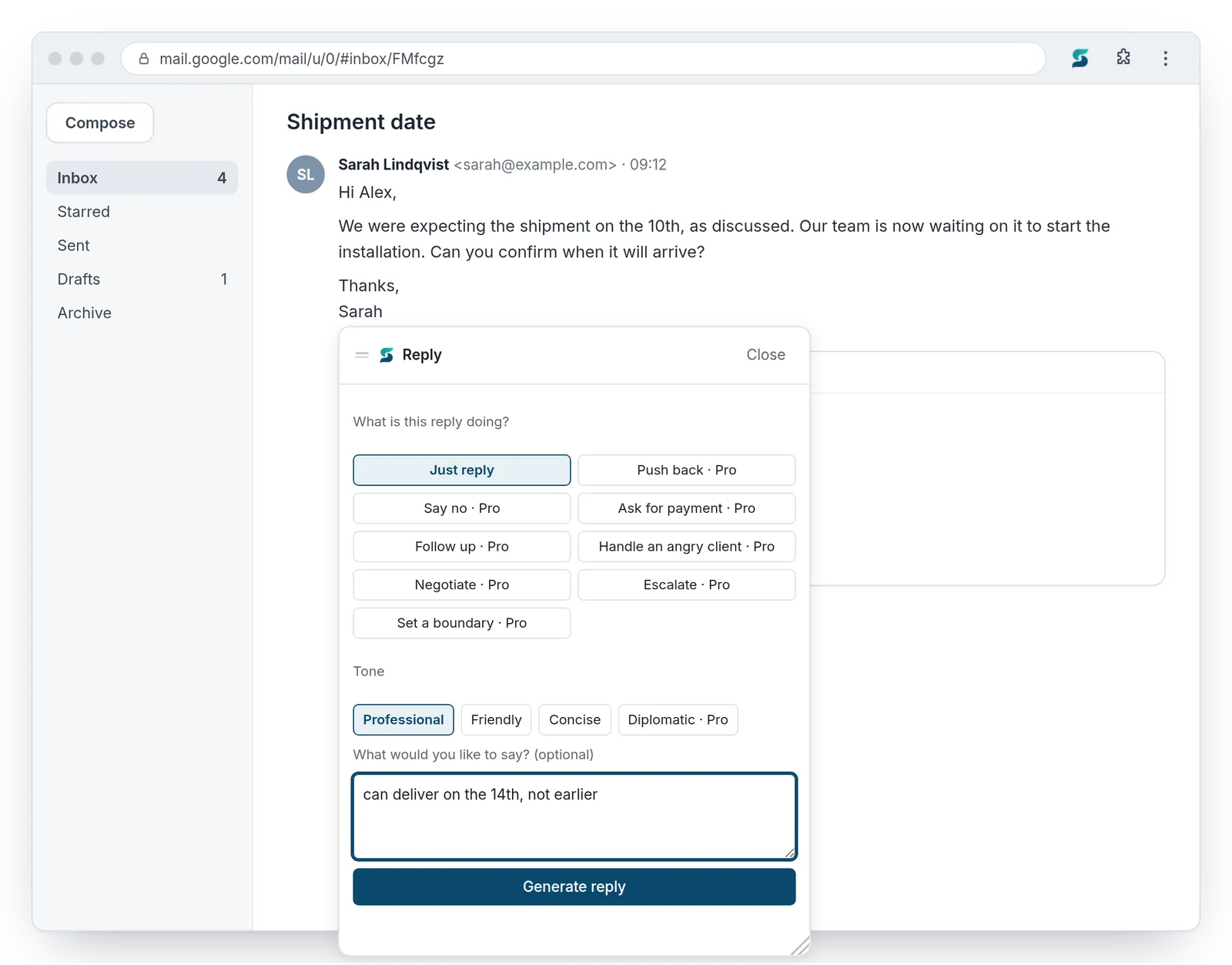
Insert puts the reply into the reply box. In Gmail and Outlook, if the reply box is not open yet, SayAlign opens it for you.
Nothing is ever sent by SayAlign: the message waits in your reply box until you press Send.
The steps above are the same everywhere. These are the differences worth knowing.
At mail.google.com. New messages, pop-out compose windows and replies inside a conversation all work.
In the browser at outlook.office.com, outlook.office365.com, outlook.live.com (Outlook.com and Hotmail) and outlook.cloud.microsoft. It does not run inside the Outlook desktop app — open your mail in Chrome, Edge or Safari instead.
At www.linkedin.com, in messages only — the Messaging page and the small chat windows. It does not appear in posts, comments or your profile, on purpose.
Yahoo, Yandex, Proton, Zoho, AOL and the other services listed below switch on by themselves. For any other webmail — your company’s, or one on your own domain — open it, click the SayAlign icon and choose Use SayAlign on this site. Your browser asks you to allow that one site, and the button appears without reloading.
You can turn it off again from the same place.
Switched on automatically for these services. Those marked ✓ have been checked on the live site; we are checking the rest one by one — if something does not work, tell us at support@sayalign.com.
Using a different webmail — your company’s, or one on your own domain (cPanel, Roundcube, SnappyMail)? Open it, click the SayAlign icon in the browser toolbar and choose Use SayAlign on this site. Your browser asks you to allow that one site.
Only what the action you chose needs, and only when you choose it.
| When you use | What is sent |
|---|---|
| Rewrite, or a situation such as Push back | The text you selected. |
| Reply | The message you are answering — the part you selected, or the latest message in the conversation when you start from the reply box — and your notes, if you wrote any. |
| Meaning review (after most results) | The text that action started from and the result it produced. |
| Check what this commits me to (only when you press it) | The whole draft you are writing. |
| Fact Guard and the instant checks | Nothing. They run in your browser. |
Text is sent to SayAlign’s service and on to our AI provider, OpenAI, only to produce the result. SayAlign does not store it. OpenAI may keep request data for a limited period to detect abuse, under its own API policy, and does not use it for training. Your inbox list, contacts and other conversations are not sent.